Printer Printing Blank Pages? Here’s How to Fix It Fast!
A printer that feeds paper normally but produces completely blank pages can be confusing. The problem may be as simple as an empty cartridge, but blank output can also result from clogged nozzles, incorrect settings, a communication problem, or a hardware fault.
Before replacing the printer, work through the checks below. The right solution depends on whether you are using an inkjet or laser device and whether the pages are completely blank or only missing some content.
Why Is My Printer Printing Blank Pages?
Several issues can cause blank output, including:
- Empty or incorrectly installed ink cartridges or toner
- Clogged inkjet printhead nozzles
- A problem with the printer’s driver or software
- Incorrect print settings or an unsuitable print profile
- A document or application problem
- Poor communication between the computer and printer
- A hardware fault
Start with the easiest checks before moving on to maintenance or driver troubleshooting.
How to Check Your Ink or Toner
First, check whether the printer has enough consumable material to produce the document.
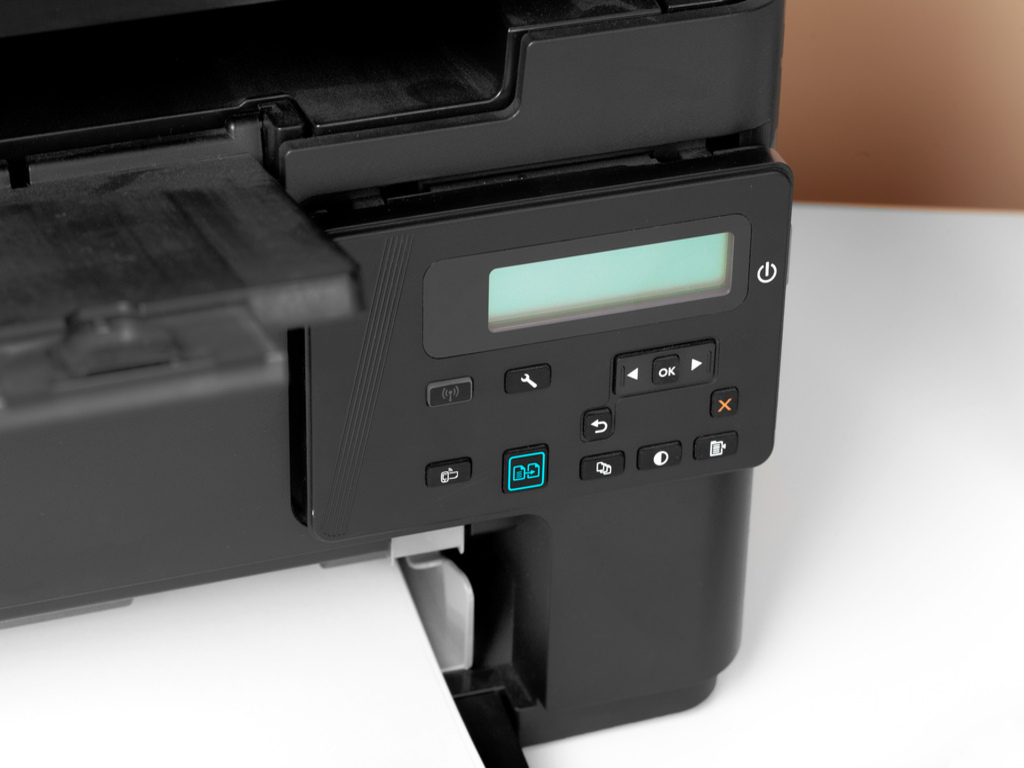
Open the printer’s control panel, display, or companion software and check the reported ink or toner levels. If a cartridge is empty, replace it with one that is compatible with your exact printer model.
If you recently installed a new cartridge, make sure it is seated correctly and remove any required protective packaging or sealing strip according to the manufacturer’s instructions.
For laser printers, also check whether the toner cartridge or imaging components need attention.

Could Clogged Printhead Nozzles Cause Blank Pages?
Yes. Clogged nozzles are a common cause of missing or blank output on inkjet printers, particularly when the device has not been used for an extended period.
Use the printer’s built-in nozzle check or printhead cleaning function. A nozzle check can show whether ink is reaching the page correctly.
If a normal cleaning cycle does not solve the problem, some models offer a deeper cleaning procedure. Follow the manufacturer’s instructions, as repeated cleaning cycles can use a significant amount of ink.
If the nozzle check remains blank after appropriate maintenance, the printhead or ink delivery system may require further attention.
How to Check Your Printer Settings
Incorrect settings usually don’t make a healthy printer produce completely blank pages, but they can affect what gets sent to the device.
Before troubleshooting the hardware, check:
- The correct printer is selected.
- The document contains visible content in the print preview.
- The correct paper size and media type are selected.
- The intended colour or monochrome setting is selected.
- The application is not using unusual print options.
- The printer is not paused or offline.
Try printing a built-in test or configuration page if your printer provides one. If that page also comes out blank, the problem is more likely related to the printer, supplies, or print mechanism than the original document.
Could the Document or Application Be the Problem?
Sometimes the printer is working correctly, and the issue is limited to one document or application.
Try printing a different file. You can also use the printer’s built-in test page to compare the results.
If other documents print normally, check the original file for:
- Hidden or white text
- Missing fonts
- Transparency or layering problems
- Damaged document elements
- Application-specific print settings
Saving the document as a new PDF and printing it can also help determine whether the original application is causing the problem.
How to Update or Reinstall Printer Drivers
A damaged or incompatible driver can interfere with communication between your computer and printer.
If other troubleshooting steps have not worked, visit the printer manufacturer’s official support website and look for the driver designed for your exact model and operating system.
Depending on the device, you may need to:
- Remove the existing printer from your computer.
- Uninstall outdated printer software or drivers if required.
- Install the manufacturer’s current software.
- Add the printer again.
- Print a test document.
Avoid downloading drivers from unofficial websites.
Should You Restart or Reset the Printer?
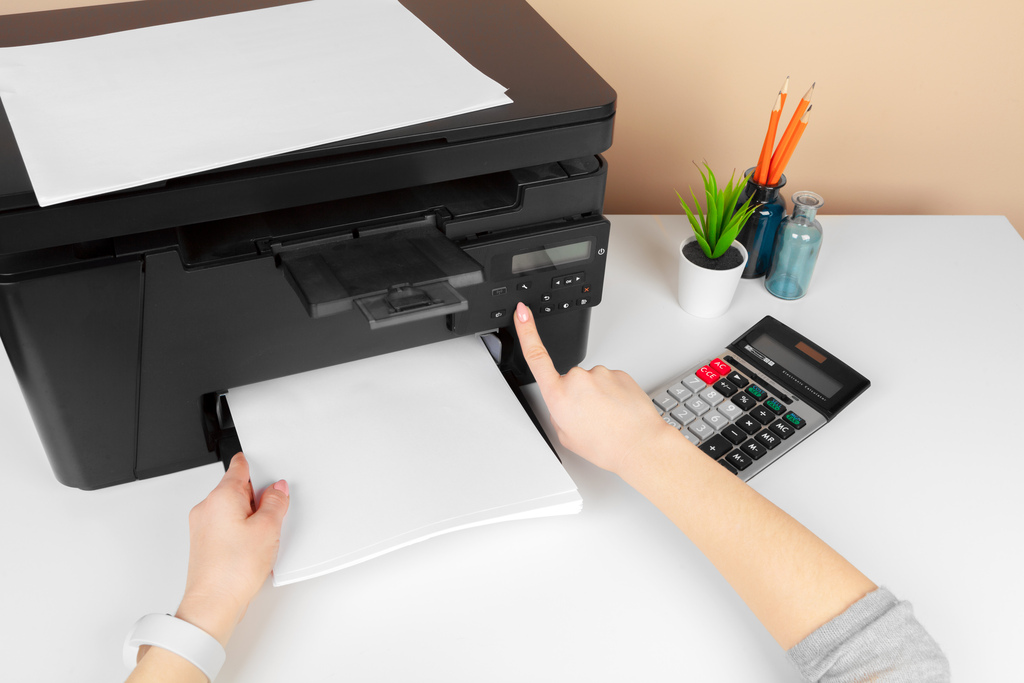
A simple restart can clear temporary errors.
Turn the printer off, wait briefly, and turn it back on. If the manufacturer’s instructions recommend disconnecting the power during troubleshooting, follow those instructions before reconnecting the device.
A factory reset is different from a normal restart and can erase network settings, preferences, and other configuration information. Do not perform a factory reset unless the manufacturer’s troubleshooting instructions recommend it for your particular problem.
What If the Printer Still Produces Blank Pages?
If cartridges are installed correctly, maintenance procedures do not restore output, and test pages remain blank, the problem may involve the printhead, ink delivery system, imaging unit, internal electronics, or another component.
Check the manufacturer’s error messages and model-specific support documentation before opening the printer. Internal components can be delicate, and a qualified technician may be better suited to some repairs.
How Can You Prevent Blank Pages?
Regular maintenance can help reduce some causes of blank output, particularly with inkjet devices.
- Use the printer according to the manufacturer’s recommendations.
- Store ink, toner, and paper appropriately.
- Avoid letting an inkjet printer sit unused for very long periods when regular use is recommended.
- Follow the manufacturer’s maintenance instructions.
- Keep the printer software and firmware updated when appropriate.
- Use supplies that are compatible with your specific model.
- Do not run cleaning cycles unnecessarily. They consume ink and should generally be used when the printer’s diagnostics indicate maintenance is needed.
When Should You Get Professional Help?
If basic troubleshooting does not restore output, a professional assessment may be more practical than repeatedly replacing cartridges or changing settings.
For business projects that need to be produced while your equipment is being serviced, Triboro Printing provides professional printing solutions for business materials, signage, promotional products, direct mail, and other print needs.
Conclusion
When a printer produces blank pages, start by checking the ink or toner, cartridge installation, printhead condition, and printer status. Then test a different document or use a built-in test page to determine whether the problem comes from the file or the device itself.
If maintenance and software troubleshooting do not resolve the issue, the printer may have a hardware or ink-delivery problem that requires model-specific support.